

How To Create A Product Breakdown Structure
The Product Breakdown Structure (PBS) is the hierarchical breakdown of the products such as hardware items, software items, and information items (NASA, 2007). The purpose of the PBS is to dissect a complex project into smaller, manageable parts. This is different from the Work Breakdown Structure (WBS) in that it outlines products to be built or bought instead of work to be done. The PBS should give project teams a clear understanding of each product, its components, and requirements of those components (Product Breakdown Structure, n.d.). The lowest level of the PBS should contain products for which a specific engineer is responsible.
How to create PBS in a team?
In all but the simplest of projects, no one person will be able to identify all of the products. The best way to identify the products is to hold a meeting (or kind of workshop) with relevant stakeholders from across the project – not only will this help tease out the products, but it will help build a common understanding of what the project is to deliver, and joint ownership of that.
It's best to try and identify some of the main top level product groups before the workshop, but not essential.
Steps to identify products
The Product Development Meeting should comprise a series of steps:
- People think about products and write each product;
- Consolidate the products into a list from the people in the meeting;
- Review the list and remove duplicates;
- Review the remaining products in the list and put them in related groups;
- Develop the product breakdown structure diagram
- Repeat the steps as necessary until everyone feels that all the products have been identified.
Creating a Product Breakdown Structure
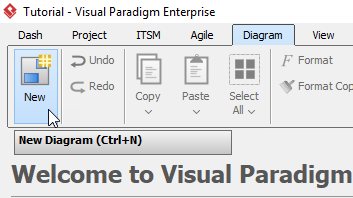
- ClickDiagram > Newform the toolbar.
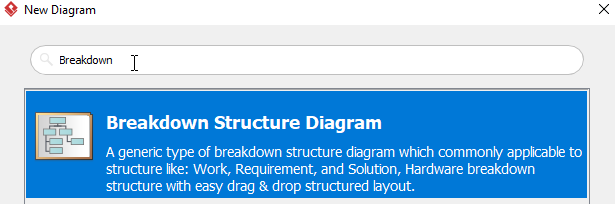
- In theNew Diagram window, select Breakdown Structure Diagram, then click Next.
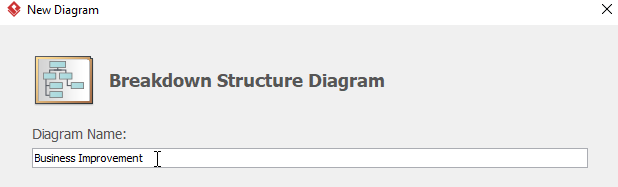
- Name the diagram then pressOK. We will name the diagramBusiness Improvement in this tutorial.
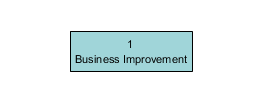
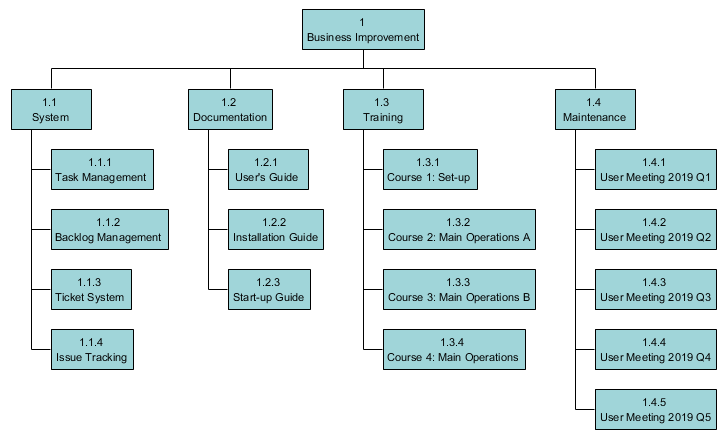
- You will see a diagram with only one elementBusiness Improvement:
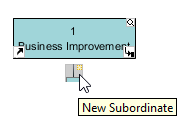
- Move the cursor to the element Business Improvement, then click the resource iconNew Subordinate.
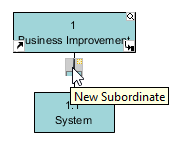
- Double click the element with ID 1.1, and rename the element toSystem. You can add a coworker for elementSystem by:
- Repeating step 5,
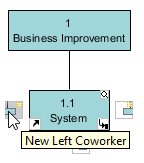
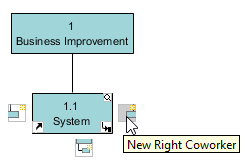
OR - Moving the cursor to the elementSystem, then click the resource iconNew Left Coworker or New Right Coworker.
- Repeating step 5,
- Repeat step 6 for more coworkers of elementSystem.
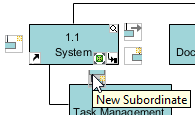
- To create a subordinate of elementSystem, move the cursor to elementSystem, then click the resource iconNew Subordinate. Rename the new subordinate toTask Management.
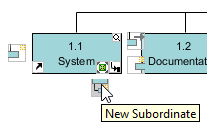
- To add a coworker forTask Management, there are two different methods:
- Repeat step 8,
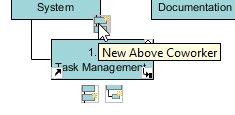
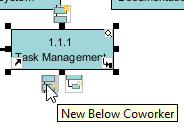
OR - Move the cursor to elementTask Management, then click the resource icon Create Above Coworker or Create Below Coworker.
- Repeat step 8,
- Repeat step 8 and 9 for other elements and their subordinates.
- You will get something similar when you finish your diagram:
How To Create A Product Breakdown Structure
Source: https://www.visual-paradigm.com/tutorials/how-to-use-product-breakdown-structure/
Posted by: caponecestion.blogspot.com
0 Response to "How To Create A Product Breakdown Structure"
Post a Comment